> ## Documentation Index
> Fetch the complete documentation index at: https://nuntly.com/docs/llms.txt
> Use this file to discover all available pages before exploring further.
# Set Up Webhooks
> Learn how to create and manage Nuntly webhooks. Subscribe to email events like delivery, bounces, opens, and clicks with a single endpoint.
Webhooks deliver real-time notifications to your server when email events occur. You configure which events to listen for and provide an endpoint URL. Nuntly sends a POST request to that URL each time a matching event happens.
## Available events
### Sending events
| Event | Description |
| ----------------------- | ----------------------------------------------------------------------- |
| `email.sent` | The email has been accepted for delivery |
| `email.delivered` | The email was successfully delivered to the recipient's mail server |
| `email.opened` | The recipient opened the email (requires open tracking on your domain) |
| `email.clicked` | The recipient clicked a link in the email (requires click tracking) |
| `email.bounced` | The email was rejected by the recipient's server |
| `email.complained` | The recipient marked the email as spam |
| `email.rejected` | Nuntly refused to send the email due to a policy or configuration issue |
| `email.deliveryDelayed` | Delivery to the recipient is temporarily delayed |
| `email.failed` | The email could not be delivered |
Open and click tracking events require tracking to be enabled on your [sending domain](/docs/guides/sending-domains#enable-open-and-click-tracking).
For details on sending event payloads and integration, see [sending events](/docs/guides/sending-webhooks).
### Receiving events
| Event | Description |
| -------------------------- | --------------------------------------------------------------------------------- |
| `message.received` | A new email was received and processed |
| `message.security.flagged` | A received message failed one or more security checks (SPF, DKIM, spam, or virus) |
| `message.agent.triggered` | A received message was routed to an AI agent inbox |
| `message.sent` | A message was sent from an inbox |
For details on receiving event payloads and integration, see [receiving events](/docs/guides/receiving-webhooks).
## Create a webhook from the dashboard
In the dashboard, go to **Webhooks**.
Click **Create Webhook**.
Configure your webhook:
* **Name.** A descriptive label (for example, "Production listener").
* **Endpoint URL.** The HTTPS URL where Nuntly will send events. This URL must be owned and controlled by you.
* **Status.** Set to **Enabled** or **Disabled**.
* **Events.** Select at least one event type to listen for.
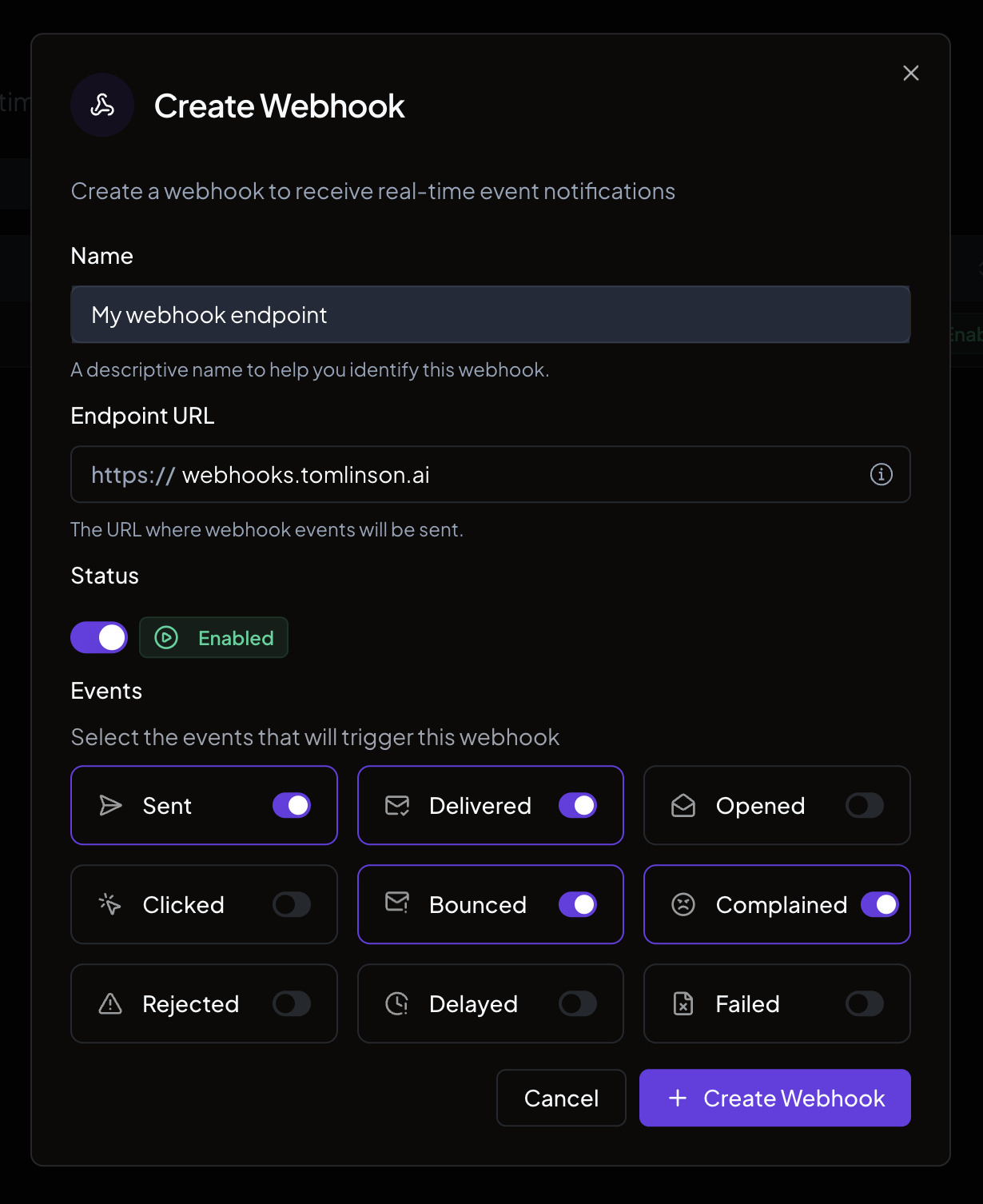 Click **Create Webhook**.
### Save your signing secret
After the webhook is created, the signing secret is displayed. Copy it immediately. It is shown only once.
Click **Create Webhook**.
### Save your signing secret
After the webhook is created, the signing secret is displayed. Copy it immediately. It is shown only once.
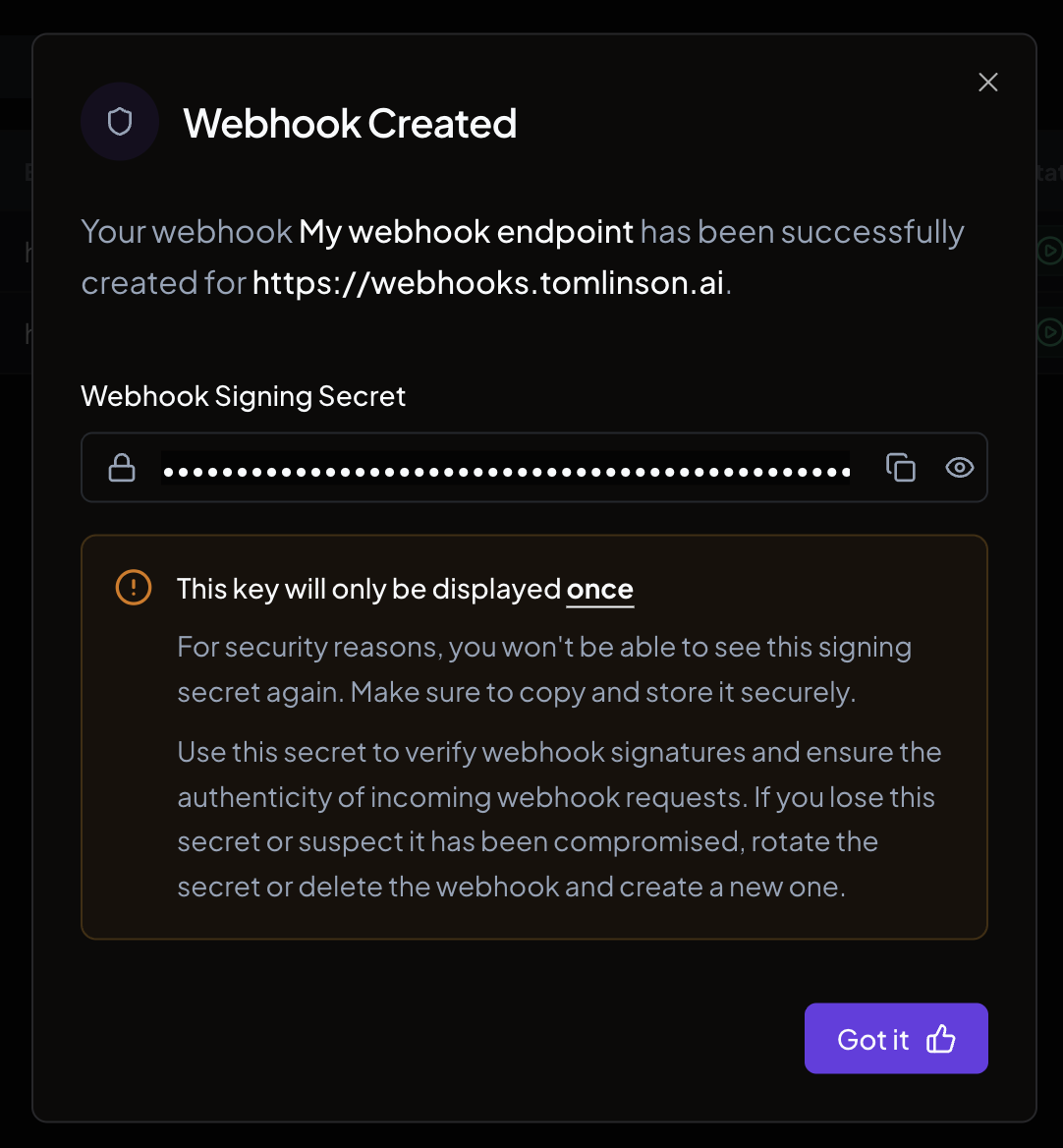 The signing secret is displayed only once. Store it securely. You will need it to verify incoming webhook requests. If you lose it, you can rotate
the secret from your webhook settings.
## Create a webhook with the SDK
You can also create webhooks programmatically:
```typescript theme={null}
import { Nuntly } from '@nuntly/sdk';
const nuntly = new Nuntly({
apiKey: process.env.NUNTLY_API_KEY,
});
const webhook = await nuntly.webhooks.create({
name: 'Production Listener',
endpointUrl: 'https://yourapp.com/api/webhooks/nuntly',
status: 'enabled',
events: ['email.delivered', 'email.bounced', 'email.complained'],
});
console.log('Webhook ID:', webhook.id);
console.log('Signing secret:', webhook.signingSecret); // Store this securely
```
## Manage webhooks
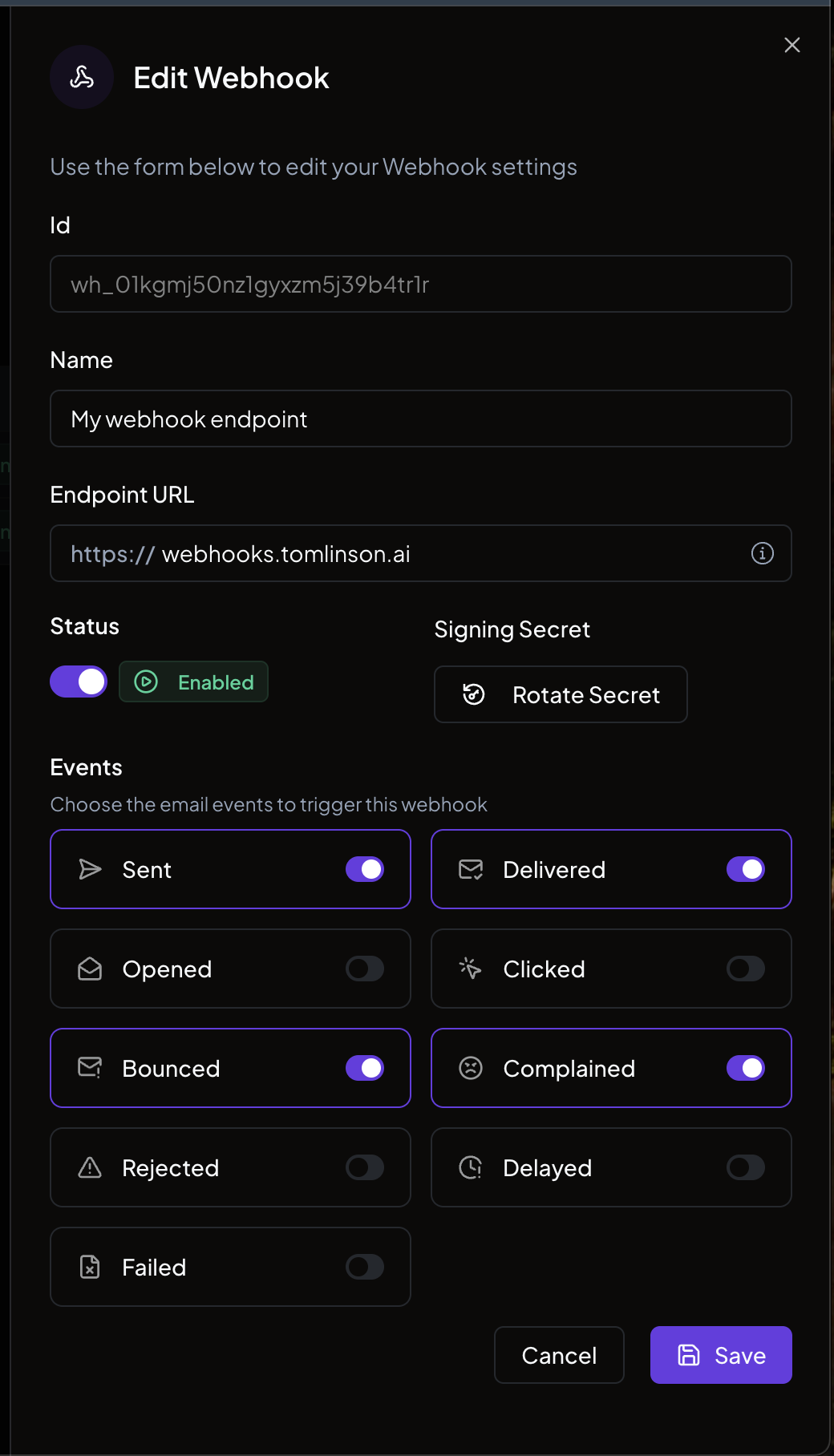
From the webhooks list in the dashboard, you can:
* **Edit.** Update the name, endpoint URL, events, or status.
* **Rotate secret.** Generate a new signing secret (remember to update your application with the new value).
* **Delete.** Remove the webhook entirely.
The signing secret is displayed only once. Store it securely. You will need it to verify incoming webhook requests. If you lose it, you can rotate
the secret from your webhook settings.
## Create a webhook with the SDK
You can also create webhooks programmatically:
```typescript theme={null}
import { Nuntly } from '@nuntly/sdk';
const nuntly = new Nuntly({
apiKey: process.env.NUNTLY_API_KEY,
});
const webhook = await nuntly.webhooks.create({
name: 'Production Listener',
endpointUrl: 'https://yourapp.com/api/webhooks/nuntly',
status: 'enabled',
events: ['email.delivered', 'email.bounced', 'email.complained'],
});
console.log('Webhook ID:', webhook.id);
console.log('Signing secret:', webhook.signingSecret); // Store this securely
```
## Manage webhooks
From the webhooks list in the dashboard, you can:
* **Edit.** Update the name, endpoint URL, events, or status.
* **Rotate secret.** Generate a new signing secret (remember to update your application with the new value).
* **Delete.** Remove the webhook entirely.
 ## Next steps
To implement the endpoint that receives and processes webhook events in your application, see [how to handle webhook events](/docs/guides/integrate-webhooks).
New to webhooks? The blog guide [what is a webhook endpoint](https://nuntly.com/blog/what-is-a-webhook-endpoint) walks through the concept, signature verification, and idempotency from scratch.
## Next steps
To implement the endpoint that receives and processes webhook events in your application, see [how to handle webhook events](/docs/guides/integrate-webhooks).
New to webhooks? The blog guide [what is a webhook endpoint](https://nuntly.com/blog/what-is-a-webhook-endpoint) walks through the concept, signature verification, and idempotency from scratch.