
ntly_.
Create an API key
1
Go to API keys
In the dashboard, go to API Keys.
2
Name your key and choose a permission
Enter a descriptive name for the key (for example, “Production” or “Development”) and select a permission type.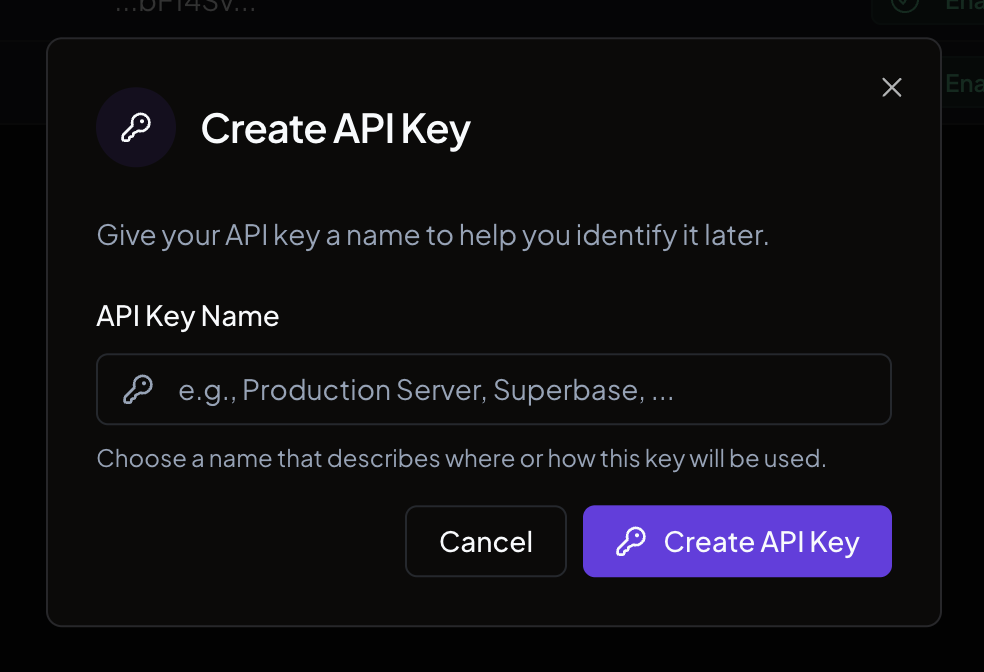
3
Create the key
Click Create API Key.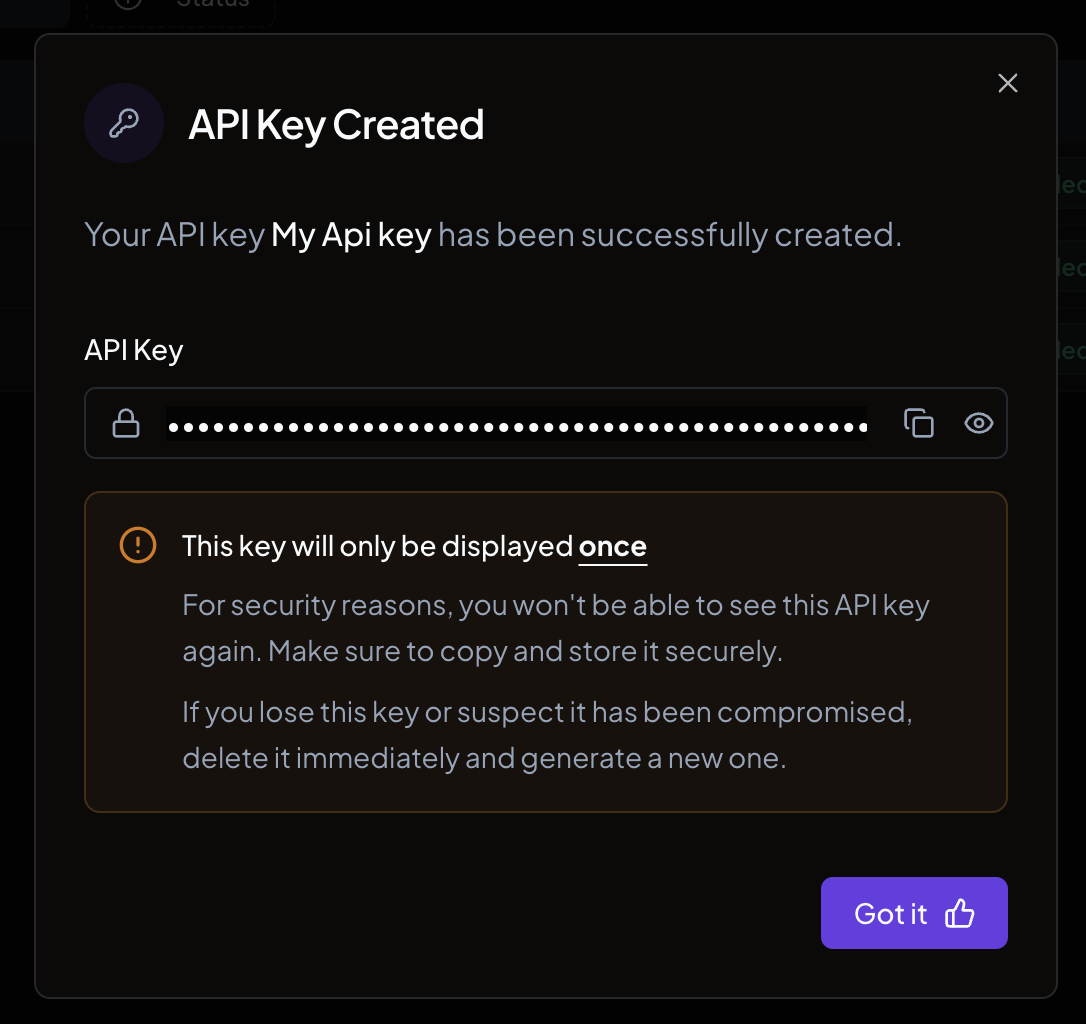
Permissions
Each API key has a permission type that controls which endpoints it can access. You choose the permission when creating the key, and you can change it later from the edit panel.Full access
Grants read and write access to all API resources: emails, domains, webhooks, API keys, and organization (read only). Use this for backend services that need complete API access.Sending only
Restricts the key to sending emails only. The key cannot read emails, manage domains, configure webhooks, or perform any other operation. Use this for services that only need to send transactional emails, such as a notification service or a third-party integration.Domain restriction
When using the Sending only permission, you can optionally restrict the key to specific verified domains. The key can then only send emails from those domains. If no domains are selected, the key can send from any verified domain in your organization.With the REST API
Set thepermission field when creating an API key through the API:
permission:
fullAccess- full read and write access to all resourcessendingAccess- can only send emails
domainIds field is optional and only applies to sendingAccess keys. Pass an array of domain IDs to restrict which domains the key can send from.
Use your API key
With the SDK
Pass your key when initializing the Nuntly client:With the REST API
Include the key in theAuthorization header of every request:
With SMTP
Use your API key as the SMTP password. See Send emails with SMTP for the full configuration.Best practices
- Use a separate key for each environment (development, staging, production)
- Use Sending only keys for services that do not need to read data or manage configuration
- Restrict sending keys to specific domains when possible to limit the blast radius if a key is compromised
- Store keys in environment variables. Never put them in source code
- If a key is compromised, delete it immediately and create a new one
Authentication
How API authentication works
Send your first email
Get started with the Nuntly API
Idempotency keys
Prevent duplicate email sends
Sending domains
Set up and verify your sending domains
Message submission (RFC 6409)
Why authenticated submission exists as its own protocol role